Convert MOV to MP4: Quick Free Guide Without Quality Loss
By ytmp3converter • October 9, 2026
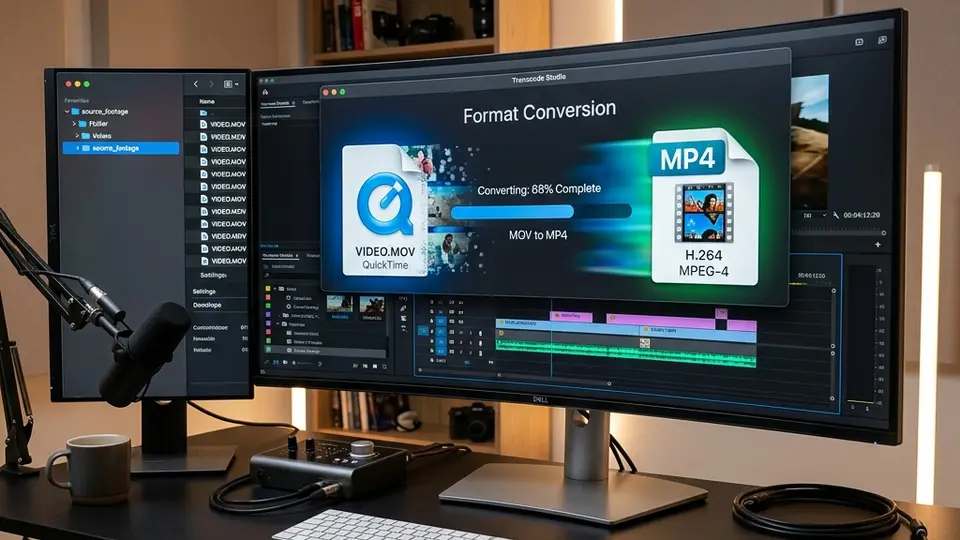
Quick Answer: To convert MOV to MP4 without losing video quality, use FFmpeg (
ffmpeg -i input.mov -c copy output.mp4) or VLC Media Player (Media > Convert/Save > H.264 + MP3 MP4 profile). Container remuxing swaps the file format wrapper in seconds without re-encoding the underlying video stream.
MOV files can fail to play when a device does not support the codecs inside the container. Depending on the source, creating an MP4 may require remuxing or re-encoding.
If you need to convert MOV to MP4 because your smart TV, Windows editing software, Android phone, or website uploader refuses to open Apple QuickTime files, this guide covers every reliable method. We will look at instant container swaps, free offline tools like VLC and HandBrake, command-line tricks with FFmpeg, and browser-based converters. No bloatware, no mystery toolbars, and no hidden subscriptions.
Table of Contents
- MOV vs MP4: What Is Actually Different
- Remuxing vs Re-Encoding: How to Keep 100% Quality
- Method 1: Convert MOV to MP4 with VLC Media Player
- Method 2: Convert MOV to MP4 with HandBrake (Best for Batch Processing)
- Method 3: Convert MOV to MP4 with FFmpeg (Instant & Lossless)
- Method 4: Convert MOV to MP4 Online in Your Browser
- Method 5: Convert MOV to MP4 on Mac Using QuickTime
- Optimal Codec & Bitrate Settings for MP4
- Conclusion
- Frequently Asked Questions (FAQ)
MOV vs MP4: What Is Actually Different
Many people assume MOV and MP4 are completely different video formats, but they share the exact same foundation. Apple developed the MOV container format in the early 1990s as part of the QuickTime File Format Specification. International standards groups later used MOV as the blueprint to create the universal MPEG-4 (MP4) container.
Think of container formats like toolboxes. MOV and MP4 are two different toolboxes holding the exact same set of spanners and wrenches (the video and audio codecs inside).
MOV Container (QuickTime) ────► Video Stream (H.264 / HEVC) + Audio Stream (AAC)
                                      ▲
                                      │ (Same internal streams)
                                      ▼
MP4 Container (MPEG-4) ────► Video Stream (H.264 / HEVC) + Audio Stream (AAC)| Feature | MOV (QuickTime) | MP4 (MPEG-4 Part 14) |
|---|---|---|
| Developer | Apple Inc. | ISO/IEC (International Standard) |
| Primary Ecosystem | macOS, iOS, Final Cut Pro | Windows, Android, Web, Smart TVs |
| Typical Video Codecs | H.264, HEVC (H.265), ProRes | H.264, HEVC (H.265), AV1 |
| Typical Audio Codecs | AAC, ALAC, Linear PCM | AAC, MP3, Opus |
| Hardware Support | Native on Apple; limited on legacy PCs | Universal across virtually all modern chips |
Nine times out of ten, an iPhone or iPad records video using the H.264 or HEVC video codec wrapped inside a MOV file. Because MP4 uses the same H.264 and HEVC codecs, converting between them is often a matter of changing the wrapper rather than rebuilding the video from scratch.
Remuxing vs Re-Encoding: How to Keep 100% Quality
Before hitting any convert button, you need to know the difference between remuxing and re-encoding.
[Remuxing]    MOV File ──► Extract Streams (H.264/AAC) ──► Wrap into MP4 File  (5 Seconds, 0% Quality Loss)
[Re-encoding] MOV File ──► Decompress Video ──► Re-compress Video ──► Save MP4 File (Minutes, Potential Quality Shift)- Remuxing (Stream Copying): Remuxing takes the raw video and audio streams straight out of the MOV container and places them directly into an MP4 container. Nothing is decoded or re-compressed. The process takes less than five seconds, uses almost zero CPU power, and causes 0% quality loss. If your MOV file already contains H.264 video and AAC audio, remuxing is the ideal route. This works just like our convert MKV to MP4 guide, where swapping the container wrapper saves hours of rendering time.
- Re-Encoding: Re-encoding reads the MOV video, decodes every single frame, and re-compresses it into a new stream. This is necessary if your MOV file uses an uncompressed or editing codec like Apple ProRes, or if you need to reduce the file size by 80% for email attachments. Re-encoding takes longer and can slightly reduce quality if your bitrates are set incorrectly.
Method 1: Convert MOV to MP4 with VLC Media Player
VLC Media Player is completely free, open-source, and already installed on millions of computers worldwide. It includes a built-in conversion engine that handles MOV files effortlessly on both Windows and macOS.
Step 1: Open VLC ──► Media ──► Convert / Save (Ctrl+R)
Step 2: Click "+ Add" ──► Select your .MOV file
Step 3: Click "Convert / Save" button at bottom
Step 4: Choose Profile ──► "Video - H.264 + MP3 (MP4)"
Step 5: Select Destination File ──► Click "Start"
Step-by-Step Instructions:
- Launch VLC Media Player.
- Click Media in the top navigation bar and select Convert / Save (or press
Ctrl + Ron Windows,Cmd + Ron Mac). - In the File Selection box, click + Add and select your MOV file.
- Click the Convert / Save button at the bottom right.
- In the Settings dropdown, select Video - H.264 + MP3 (MP4) or Video - H.264 + AAC (MP4).
- Click the spanner icon next to the profile to verify that Keep original video track is checked if you want a fast pass-through.
- Click Browse under Destination to choose where your new MP4 file will be saved.
- Click Start. VLC will process the video, and a timeline bar will show the progress.
Method 2: Convert MOV to MP4 with HandBrake (Best for Batch Processing)
When you have twenty or thirty MOV videos from a weekend trip, converting them one by one in a player gets tedious. HandBrake is an open-source video transcoder designed specifically for batch processing with custom quality controls.
HandBrake Workflow:
Open Folder (Batch) ──► Load Preset ("Fast 1080p30") ──► Set Format to MP4 ──► Start Queue
Step-by-Step Instructions:
- Download and open HandBrake (free for Windows, Mac, and Linux).
- Drag your MOV file (or an entire folder of MOV files) directly into the HandBrake window.
- Under the Summary tab, ensure the Format dropdown is set to MP4.
- Check the Web Optimized box. This moves header metadata to the beginning of the file so your MP4 starts playing instantly when streamed online.
- Go to the Presets menu on the right. For general use, select General > Fast 1080p30. For high-resolution mobile videos, select Devices > Apple 1080p30 or Android 1080p30.
- Under the Video tab, set Framerate (FPS) to “Same as source” and select Constant Quality (RF 20 to 22) for crisp clarity without bloated file sizes.
- Click Browse at the bottom right to pick your destination folder, then hit the green Start Encode button at the top bar.
HandBrake handles queueing automatically. You can load a folder with 50 GB of iPhone MOV files, hit Start Encode, and walk away while your computer converts every file into a compact MP4.
Method 3: Convert MOV to MP4 with FFmpeg (Instant & Lossless)
If you like speed and zero-nonsense command lines, FFmpeg is the ultimate tool. It is the lightweight engine that powers thousands of media converters across the web.
Because MOV and MP4 can use identical codecs, FFmpeg can remux your file in under five seconds without touching the video data.
The 5-Second Lossless Command:
Open your terminal or command prompt and run:
ffmpeg -i input.mov -c copy output.mp4Here is what those flags mean:
-i input.mov: Specifies your source MOV file.-c copy: Tells FFmpeg to copy both video and audio codecs directly without re-encoding.output.mp4: Generates the clean MP4 container file.
Full Re-encode Command (For Incompatible Codecs):
If your MOV file uses an older codec (like ProRes or Motion JPEG) that will not play on mobile devices, force an H.264 + AAC encode using this command:
ffmpeg -i input.mov -c:v libx264 -crf 20 -c:a aac -b:a 192k output.mp4-crf 20: Sets Constant Rate Factor (18 to 22 is visually lossless for 1080p).-c:a aac -b:a 192k: Encodes audio into clean 192 kbps AAC. For more details on audio encoding, check our guide on optimal audio bitrate settings.
Method 4: Convert MOV to MP4 Online in Your Browser
If you are on a borrowed computer, Chromebook, or work laptop where installing software is restricted, browser-based online converters are the quickest fix.
Upload MOV ──► Select MP4 Format ──► Process ──► Download MP4When to Use Online Converters:
- Your MOV file is under 500 MB.
- You do not want to install third-party software.
- You need a quick conversion on mobile or tablet.
How It Works:
- Open a reputable web converter in Chrome, Safari, Firefox, or Edge.
- Drag and drop your
.movfile into the upload dropzone. - Verify that the target output format is set to MP4.
- Click Convert. The tool processes the file on remote servers or inside your browser using WebAssembly.
- Click Download to save your new
.mp4file.
If privacy or security is a priority when converting personal media online, review our detailed guide on cloud-based file converter safety before uploading sensitive clips.
Method 5: Convert MOV to MP4 on Mac Using QuickTime
If you use macOS, you do not need any third-party tools or terminal commands. Mac OS includes native conversion tools right inside QuickTime Player and Finder.
Option A: Using QuickTime Player
- Double-click your
.movfile to open it in QuickTime Player. - Click File in the top menu bar, then hover over Export As.
- Choose your desired resolution: 4K, 1080p, 720p, or 480p.
- QuickTime will export the video as an
.m4vor.mp4file encoded with H.264 or HEVC.
Option B: Using Finder’s Built-in Encoder
- Open Finder and right-click your
.movfile. - Scroll down to the bottom of the contextual menu and select Encode Selected Video Files.
- In the popup window, choose 1080p or Same as Source from the Setting dropdown.
- Select Encode for Compatibility (H.264).
- Click Continue. macOS creates an MP4 copy in the same folder automatically.
Optimal Codec & Bitrate Settings for MP4
When re-encoding MOV files to MP4, choosing the right codec and bitrate settings prevents pixelation and file bloat. Here are honest recommended specifications for 2026 playback across web platforms, smart TVs, and mobile devices:
| Video Resolution | Target Video Codec | Recommended Bitrate | Target Audio Codec | Audio Bitrate |
|---|---|---|---|---|
| 720p (HD) | H.264 / AVC | 3,500 – 5,000 kbps | AAC-LC | 160 kbps |
| 1080p (Full HD) | H.264 / AVC | 8,000 – 12,000 kbps | AAC-LC | 192 kbps |
| 4K (Ultra HD) | HEVC / H.265 | 20,000 – 35,000 kbps | AAC-LC / Opus | 320 kbps |
If you ever need to extract the audio track from your finished MP4 file for podcasts or voice notes, read our step-by-step tutorial on extracting audio from MP4 files.
Conclusion
Converting MOV to MP4 is straightforward once you know whether you need a quick container swap or a full re-encode:
- For 5-second zero-loss conversions: Use FFmpeg (
ffmpeg -i input.mov -c copy output.mp4) or QuickTime’s built-in export on Mac. - For quick single files on PC: Open VLC Media Player, go to
Media > Convert/Save, select your file, and choose the H.264 MP4 profile. - For multiple large files: Batch process your MOV clips in HandBrake using the
Fast 1080p30preset. - For one-off mobile conversions: Use a trusted online converter directly in your web browser.
Once converted to MP4, your video will play on any device — from an Android tablet to an old smart TV — without screen glitches or codec complaints.
Frequently Asked Questions (FAQ)
Does converting MOV to MP4 lose video quality?
No, converting MOV to MP4 does not reduce quality if you use container remuxing or set matching bitrates. Because both containers support H.264 and HEVC codecs, streams can often be repackaged directly without lossy re-encoding.
How can I convert MOV to MP4 for free on Windows?
You can convert MOV to MP4 on Windows for free using VLC Media Player, HandBrake, FFmpeg, or browser-based tools. Open VLC, select Media then Convert/Save, choose your MOV file, set the output to MP4, and click Start.
Why is MOV not playing on non-Apple devices?
MOV is Apple’s proprietary QuickTime container. While macOS and iOS handle it natively, Windows PCs, Android phones, smart TVs, and older media players often lack built-in codec support for MOV wrapper structures.
What is the difference between MOV and MP4?
Both MOV and MP4 are container formats based on the QuickTime structure. MOV is tailored for Apple environments and video editing software like Final Cut Pro. MP4 is an open ISO standard offering universal hardware and web compatibility.
How do I convert MOV to MP4 on a Mac without software?
On macOS, open your MOV file in QuickTime Player, choose File then Export As, select your target resolution (1080p or 4K), and save it. You can also rename or remux the container using native terminal commands.
Can I convert large MOV files to MP4 online?
Online converters process files up to 500 MB for free, but offline tools like HandBrake or FFmpeg are better for multi-gigabyte MOV files to avoid long upload times or bandwidth caps.