How to Convert YouTube Videos to M4A (Free Guide)
By ytmp3converter • July 23, 2026
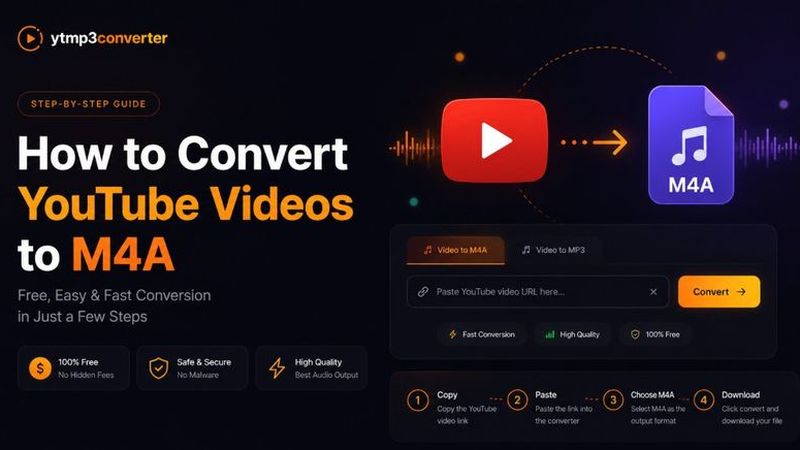
Learning how to convert YouTube videos to M4A lets you save audio in a compact, high-quality format for offline listening. An M4A file is an audio container commonly associated with the efficient AAC codec. People often choose it for podcasts, permitted music downloads, audiobooks, lectures, interviews, and recordings they own or have permission to save.
Compared with MP3, M4A can provide similar or better perceived quality at the same bitrate. It works well on modern devices.
This guide explains how an online YouTube to M4A converter works, which quality setting to choose, how M4A compares with MP3, and how to solve common conversion problems. Only download material you created, public-domain media, or content you are authorized to use.
What Is an M4A File?
M4A is an audio-only media container commonly used for sound encoded with AAC. It offers efficient compression, manageable file sizes, and broad compatibility with modern devices. Some M4A files instead contain Apple Lossless Audio Codec, or ALAC, so the extension alone does not identify the exact codec.
AAC is a lossy audio codec, which means it reduces file size by removing data that is less noticeable during normal listening. At comparable bitrates, AAC is generally more efficient than older MP3 encoding. That makes M4A useful when you want good audio quality without creating an unnecessarily large file.
For example, a 128 kbps AAC file may retain more audible detail than an MP3 encoded at the same nominal bitrate. The difference depends on the original source, encoder, listening equipment, and complexity of the sound.
M4A works on iPhone, iPad, Mac, Android devices, Windows applications, VLC, and many music players. Compatibility can vary on older car stereos and basic MP3 players, where MP3 may remain safer.
What You’ll Need Before Converting
An online YouTube M4A download requires a stable connection, current browser, eligible YouTube URL, converter with genuine M4A support, enough storage, and permission to download the content. No software installation is required, making the process accessible on computers, phones, and tablets.
Before starting, confirm that the service lists M4A as an output option. A converter that offers only MP3 and MP4 cannot create a true M4A simply by changing the filename. Renaming .mp3 or .mp4 to .m4a does not change the file’s internal format.
You should also review the video owner’s permissions and relevant platform rules. YouTube Help provides official guidance about using YouTube and managing downloadable content.
How to Convert YouTube Videos to M4A (Step-by-Step)
To convert a YouTube video to M4A, copy the permitted video’s URL, paste it into a converter that supports M4A, select the desired audio quality, start processing, and save the finished file. The exact controls differ between services, but the basic workflow remains the same.
1. Copy the YouTube URL
On a desktop computer, open the eligible video in your browser. Select and copy the address in the browser bar. You can also click Share below the video and choose Copy.
On a phone or tablet, open the YouTube app or mobile website. Tap Share, then select Copy link. A reliable converter should recognize both full youtube.com addresses and shorter youtu.be links.
Copy the complete address. Partial URLs or extra text can cause an error.
2. Paste the Link into the Converter
Open a reputable converter YouTube to M4A service. Find the field labeled Paste URL, Video Link, or similar. Click inside it and paste the copied address.
Use the genuine form and avoid advertisements that request an extension, browser update, or unrelated application. The converter may then display the video’s title, duration, or thumbnail.
3. Select M4A as the Output Format
Choose M4A from the available audio formats. Do not select MP4 merely because the names look similar. MP4 commonly contains video, while M4A is intended for audio-only media.
M4A suits speech, music, and audiobooks because AAC preserves good listening quality at modest sizes. If M4A does not appear, choose a service with native support instead of repeatedly transcoding a low-quality file.
4. Click Convert
Select the preferred bitrate, if quality controls are available, and click Convert. The service will process the eligible media’s audio stream and prepare an M4A file.
Processing time depends on length, server workload, connection, and quality. Keep the tab open; refreshing, switching networks, or suspending a mobile browser can interrupt conversion.
5. Download the M4A File
When processing is complete, click the genuine Download M4A button. Your browser will usually save the file in its default Downloads folder.
On Android, check Downloads. On iPhone or iPad, look in the Files app. Play the result and check for missing audio, silence, or distortion before moving it into a library for authorized offline listening.
Choosing the Best Audio Quality
For everyday listening, 128 kbps AAC offers a practical balance between sound and file size. Choose 192 or 256 kbps for demanding music listening when the source contains enough quality to justify it. Lower settings suit speech or limited storage.
| Bitrate | Relative size | Best use | Practical guidance |
|---|---|---|---|
| 64 kbps | Very small | Spoken lectures and voice notes | Usable for speech but limited for music |
| 96 kbps | Small | Podcasts and audiobooks | Good when storage or data is limited |
| 128 kbps | Moderate | Everyday listening | Best general balance for many users |
| 192 kbps | Larger | Music and detailed recordings | Preserves more detail on good equipment |
| 256 kbps | Largest here | High-quality music listening | Useful when the source is already strong |
A higher output bitrate cannot add detail absent from the original audio. If the source contains heavy compression, clipping, noise, or a poor recording, encoding it at 256 kbps will not repair those problems.
Doubling bitrate approximately doubles the audio data for the same duration, so check available storage before a long download YouTube to M4A job.
Why Choose M4A Instead of MP3?
M4A and MP3 are both useful lossy formats, but they serve slightly different needs. M4A often provides more efficient compression, while MP3 offers exceptional compatibility with older equipment.
| Feature | M4A | MP3 |
|---|---|---|
| Audio quality | Often better at a comparable bitrate | Good, but uses an older codec |
| Compression | Commonly efficient AAC encoding | Less efficient at lower bitrates |
| File size | Often smaller for similar perceived quality | May need a higher bitrate |
| Compatibility | Broad on modern devices | Nearly universal |
| Streaming | Well suited to modern services | Widely used but less efficient |
| Apple devices | Excellent native support | Fully supported |
| Android support | Supported by modern devices | Universally supported |
| Windows support | Supported by current apps | Excellent legacy support |
| Music libraries | Strong modern support | Best legacy compatibility |
Choose M4A for modern devices and efficient storage. Choose MP3 for old car stereos, basic portable players, or legacy applications.
Common Problems and How to Fix Them
Private, restricted, or unavailable videos
A private video is available only to approved accounts. An online YouTube converter M4A service cannot normally access a private session. Age-restricted or sign-in-only videos may fail for the same reason. Never give an unknown service your password or session cookies.
If a video is unavailable, it may have been removed, blocked in your location, or restricted by its owner. Open the URL directly to confirm that it still plays.
Slow conversion or long videos
Server congestion, long videos, and unstable connections can slow processing. Keep the tab active, avoid simultaneous jobs, and check the service’s duration and size limits.
Broken links and browser problems
Copy the URL again and remove unrelated text. If a playlist address fails, open the individual video and copy its direct link.
If controls do not respond, reload the page, clear that site’s cached data, or use a private window. On mobile, keep the browser in the foreground and confirm that downloads are permitted.
Tips for Better Audio Quality
Start with the highest-quality authorized source available. A converter cannot reconstruct detail already removed by the source or YouTube’s processing.
Use a stable connection and avoid multiple lossy conversions. Converting to MP3 and then M4A adds another encoding stage without restoring quality. Select M4A first, verify the finished file, and preserve that copy.
Is Converting YouTube Videos to M4A Safe?
Browser-based conversion does not automatically make a service safe. Choose a reputable online YouTube to M4A converter with HTTPS, understandable privacy information, and a simple workflow.
Avoid fake download buttons and pages that open unrelated tabs. A basic conversion should not require an executable program, browser extension, notification permission, or account password.
Pasting a URL reveals the selected video to the processing service, so do not submit private or confidential links. Convert only videos you created, content whose owner permits downloading, or material offered under terms that allow your intended use.
Frequently Asked Questions
Is converting YouTube to M4A free?
Many online converters provide free M4A processing, although they may limit duration, file size, quality, or daily use. Confirm that the service supports M4A and review its terms before starting.
Does it work on mobile?
Yes. A browser-based online YouTube to M4A converter can work on Android phones, iPhones, and tablets without installing software. Copy the eligible link, paste it into the service, select M4A, and save the result.
How long does conversion take?
Short videos may process in seconds, while long recordings can require several minutes. Duration, server demand, connection reliability, and output quality all affect processing time.
Does M4A sound better than MP3?
M4A files using AAC often provide better perceived quality than MP3 at the same bitrate because AAC uses more efficient compression. Results still depend on the encoder and source.
Can I convert long YouTube videos?
It depends on the converter’s duration and file-size limits. Long lectures and podcasts require more processing time and storage. Prefer an official creator-provided download whenever one exists.
Will the downloaded audio keep the original quality?
Not exactly. YouTube already processes uploaded audio, and a new lossy M4A can add another encoding stage. A good conversion preserves strong listening quality but cannot restore missing detail.
Do I need to install software?
No. An online converter works in a current browser and should not require an application, extension, or plugin. Treat unexpected installation prompts as a warning.
Is M4A supported on iPhone and Android?
M4A has excellent native support on iPhone, iPad, and Mac. Modern Android devices also play AAC-based M4A files through common media applications. Very old hardware may require MP3.
Conclusion
Understanding how to convert YouTube videos to M4A helps you choose an efficient audio format for permitted offline listening. Copy an eligible URL, use a converter with genuine M4A support, select a suitable bitrate, process the audio, and save the completed file.
M4A offers strong sound quality, efficient compression, and broad support across modern devices. Choose 128 kbps for everyday use or a higher setting when the source justifies it. For older devices that need wider compatibility, the YouTube to MP3 Converter provides an alternative format.