Convert MKV to MP4: Remux or Re-Encode Without the Headache
By ytmp3converter • October 3, 2026
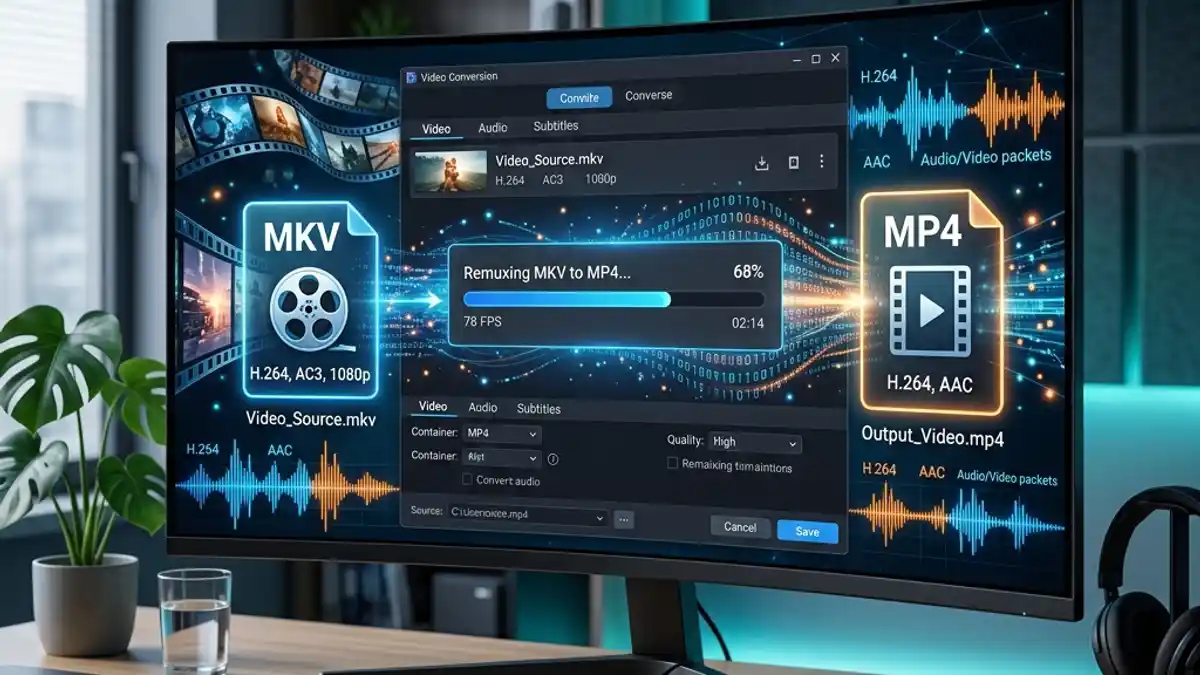
Quick Answer: To convert MKV to MP4 without losing quality, remux the file using FFmpeg (
ffmpeg -i input.mkv -c copy output.mp4) or OBS Studio’s built-in remuxer. This swaps the container in seconds with zero quality loss. For files that need codec changes, use HandBrake or VLC for a full re-encode.
MKV playback depends on both the container and the codecs inside it. Before converting, check whether the target device can play the existing audio and video streams.
If you need to convert MKV to MP4 because your phone, tablet, smart TV, or video editor refuses to cooperate, this guide covers every method — from a zero-quality-loss container swap that takes five seconds to a full re-encode when you need maximum compatibility. No adware, no mystery software, no 200 MB installers for a job that should be straightforward.
Table of Contents
- MKV vs MP4: What Is Actually Different
- Remuxing vs Re-Encoding: Which Do You Need
- Convert MKV to MP4 with FFmpeg (Fastest Method)
- Convert MKV to MP4 with OBS Studio Remuxer
- Convert MKV to MP4 with HandBrake
- Convert MKV to MP4 with VLC Media Player
- Convert MKV to MP4 Online
- Handling Subtitles During Conversion
- Conclusion
- Frequently Asked Questions (FAQ)
MKV vs MP4: What Is Actually Different
Here is the thing most people get wrong: MKV and MP4 are not video formats. They are containers. Think of them as different shaped lunchboxes holding the same sandwich.
The video inside (the codec — typically H.264 or H.265) is identical in both containers. The audio codec (AAC, MP3, FLAC, or others) rides alongside it. The container just determines how these streams are packaged, what metadata gets stored, and which devices can read the label.
| Feature | MKV (Matroska) | MP4 (MPEG-4 Part 14) |
|---|---|---|
| Developer | Matroska.org (open-source) | ISO/IEC (international standard) |
| Video Codecs | Virtually anything (H.264, H.265, VP9, AV1) | H.264, H.265, AV1 |
| Audio Codecs | Virtually anything (AAC, FLAC, DTS, AC3, Opus) | AAC, MP3, AC3 (limited) |
| Subtitle Support | ASS, SSA, SRT, PGS, VobSub — unlimited tracks | SRT only (limited), or burned-in |
| Chapter Support | Full chapter markers | Basic chapter support |
| Device Compatibility | Media servers, PC players, some smart TVs | Phones, tablets, browsers, smart TVs, everything |
| Best For | Archiving, media libraries, Plex/Kodi | Sharing, uploading, universal playback |
The practical takeaway: if the file is sitting on your Plex server or your PC, MKV is perfectly fine. If you need to share it, upload it, play it on a phone, or drop it into a video editor, MP4 is the format that makes everyone’s life easier.
For more on how different container formats handle audio, check our guide on what does FLAC stand for — it covers the same container-versus-codec distinction for audio files.
Remuxing vs Re-Encoding: Which Do You Need
Before you convert anything, you need to answer one question: does the video inside the MKV already use codecs that MP4 supports?
If yes — and nine times out of ten, it does — you can remux. If no, you need to re-encode.
Remuxing (Container Swap)
Remuxing copies the video and audio streams from the MKV container into an MP4 container without touching the data. Like moving a sandwich from a plastic box to a paper bag. Same sandwich. Different packaging. Zero quality loss.
- Speed: Seconds, not minutes. A 4 GB movie remuxes in under 10 seconds.
- Quality: Identical to the original. Bit-for-bit the same.
- When it works: When the MKV contains H.264 or H.265 video with AAC or MP3 audio.
- When it fails: When the MKV contains codecs that MP4 does not support (like FLAC audio, DTS surround sound, or ASS-styled subtitles).
Re-Encoding (Full Conversion)
Re-encoding decodes the original streams and compresses them again into MP4-compatible codecs. This takes significantly longer and may introduce a small quality reduction — though with modern encoders at decent settings, the difference is negligible for everyday viewing.
- Speed: Minutes to hours, depending on file size and your CPU.
- Quality: Slightly lower than original unless you use very high bitrate settings.
- When needed: When the original codecs are incompatible with MP4, or when you want to compress the file size significantly.
Rule of thumb: always try remuxing first. If the resulting MP4 plays correctly — audio synced, video smooth — you are done. If something breaks, fall back to a full re-encode.
Convert MKV to MP4 with FFmpeg (Fastest Method)
FFmpeg is the engine behind most video conversion tools. It is free, open-source, and the fastest way to remux MKV to MP4 on any operating system.
Step-by-Step
- Install FFmpeg from the official site or your package manager
- Open a terminal (Command Prompt on Windows, Terminal on Mac/Linux)
- Run this command:
ffmpeg -i input.mkv -c copy output.mp4That is the entire process. The -c copy flag tells FFmpeg to copy the streams without re-encoding. A 2 GB file finishes in about 5 seconds.
If the Audio Codec Is Incompatible
If your MKV has audio that MP4 cannot hold (like DTS or FLAC), re-encode only the audio while keeping the video untouched:
ffmpeg -i input.mkv -c:v copy -c:a aac -b:a 256k output.mp4This copies the video stream as-is (zero quality loss on the video) and only re-encodes the audio to AAC at 256 kbps. Fast, clean, minimal quality impact.
Convert MKV to MP4 with OBS Studio Remuxer
If you already have OBS Studio installed for streaming or screen recording, you have a remuxer built right in and probably never noticed it.
Step-by-Step
- Open OBS Studio
- Go to File then Remux Recordings
- Click the three dots and select your MKV file
- Click Remux
- Done. The MP4 file appears in the same folder
This is a pure remux — no re-encoding, no quality loss, no complicated settings. OBS actually records in MKV by default specifically because MKV is crash-resistant (if your PC dies mid-recording, the file is still usable). The built-in remuxer exists so you can safely convert to MP4 after the recording finishes.
Convert MKV to MP4 with HandBrake
HandBrake is the go-to tool when you need a full re-encode — maybe you want to compress the file, change the resolution, or ensure absolute compatibility with every device on the planet.
Step-by-Step
- Download HandBrake from handbrake.fr (free, open-source)
- Open HandBrake and drag your MKV file into the window
- Under Summary, set Format to MP4
- Under Video, choose your encoder:
- H.264 (x264) for maximum compatibility
- H.265 (x265) for smaller files at the same quality
- Set quality using the RF (Rate Factor) slider:
- RF 18-20 for high quality (visually lossless for most content)
- RF 22-24 for good quality with smaller file size
- Under Audio, ensure the codec is set to AAC
- Click Start Encode
HandBrake will take longer than a remux — anywhere from a few minutes for a short clip to an hour for a full movie, depending on your hardware. But the output is a rock-solid MP4 that will play on anything manufactured in the last fifteen years.
If you regularly convert files between multiple formats beyond just MKV and MP4, our audio file converter guide explains how online converters handle different container and codec combinations.
For a broader look at audio codec options during conversion, our best audio quality settings guide covers bitrate selection in detail.
Convert MKV to MP4 with VLC Media Player
VLC is not just a media player — it has a converter hiding inside it. Not the fastest or most configurable option, but if you already have VLC installed, it works without downloading anything new.
Step-by-Step
- Open VLC Media Player
- Go to Media then Convert / Save (or press Ctrl+R)
- Click Add and select your MKV file
- Click the Convert / Save button at the bottom
- Under Profile, select Video - H.264 + MP3 (MP4)
- Click Browse to set the output filename (make sure it ends in
.mp4) - Click Start
VLC performs a full re-encode, so it takes proportionally longer for bigger files. The output quality depends on VLC’s default encoding settings, which are reasonable but not as tunable as HandBrake.
One thing to note: VLC sometimes gets the audio/video sync slightly off on very long files. If that happens, use HandBrake or FFmpeg instead.
Convert MKV to MP4 Online
If you have a small file and do not want to install anything, an online converter gets the job done from your browser.
How to Do It
- Open a browser-based video converter
- Upload your MKV file
- Select MP4 as the output format
- Click Convert and download the result
What to Keep In Mind
- File size limits. Most free online converters cap uploads at 500 MB to 1 GB. That 4 GB movie rip is not going to work.
- Privacy. Your file gets uploaded to someone else’s server. Do not upload anything sensitive, private, or commercially valuable. For private files, stick with desktop tools.
- Speed. Upload time plus conversion time plus download time. For a 200 MB file on decent internet, maybe 3-4 minutes total. For larger files, it gets tedious.
- Ad traps. The real download button is the small, boring-looking one. The large, colourful “DOWNLOAD NOW” button is almost certainly an ad. Every time.
Online converters are genuinely useful for quick, one-off jobs with small files. For anything bigger or anything you do regularly, install one of the desktop tools above and save yourself the repeated uploads.
If you are wondering which online converters are actually trustworthy, our review of whether CloudConvert is safe covers the security side of browser-based conversion tools.
If you are also working with M3U8 streaming files and need to get them into MP4, our guide on how to convert M3U8 files to MP4 covers that specific workflow.
Handling Subtitles During Conversion
Subtitles are the one area where MKV to MP4 conversion gets genuinely tricky. MKV supports virtually every subtitle format — SRT, ASS, SSA, PGS bitmap subs — and can hold as many subtitle tracks as you want. MP4 is far more restrictive.
Simple Text Subtitles (SRT)
If your MKV contains SRT subtitles, FFmpeg can carry them over to MP4 directly:
ffmpeg -i input.mkv -c:v copy -c:a copy -c:s mov_text output.mp4The -c:s mov_text flag converts the subtitle stream to MP4’s native text format.
Styled Subtitles (ASS/SSA)
ASS and SSA subtitles — common in anime and fan-subbed content — use custom fonts, colours, positioning, and animations. MP4 does not support any of that. You have two options:
- Burn them in (hardcoded into the video permanently):
ffmpeg -i input.mkv -vf "ass=subtitle.ass" -c:a copy output.mp4- Extract them as a separate SRT file and lose the styling.
Burning in subtitles requires a full re-encode of the video track, which takes longer but guarantees the subtitles display correctly on every device.
Conclusion
Converting MKV to MP4 comes down to one decision: remux or re-encode.
If your file already contains H.264 or H.265 video with AAC audio, remux it with FFmpeg or OBS. Five seconds, zero quality loss, done. If the codecs are incompatible or you need to compress the file, use HandBrake for a full re-encode with fine-tuned quality control. VLC and online tools work in a pinch for simpler jobs.
Technical specifications for the Matroska container format are maintained by the Matroska.org project.
Frequently Asked Questions (FAQ)
Does converting MKV to MP4 lose quality?
Not if you remux instead of re-encode. Remuxing copies the video and audio streams from the MKV container into an MP4 container without touching the data. Zero quality loss, and it finishes in seconds rather than minutes.
Can I convert MKV to MP4 for free?
Yes. VLC, HandBrake, FFmpeg, and OBS Studio all handle MKV to MP4 conversion at no cost. Online converters work for smaller files. Every method covered in this guide is free.
What is the difference between MKV and MP4?
Both are container formats, not codecs. MKV supports unlimited audio, subtitle, and chapter tracks, making it ideal for archiving. MP4 offers near-universal device compatibility but has stricter codec and subtitle support.
How do I convert MKV to MP4 using VLC?
Open VLC, go to Media then Convert/Save, add your MKV file, choose the Video H.264 + MP3 (MP4) profile, set a destination filename, and click Start. VLC will re-encode the file into a compatible MP4.
Why does my phone not play MKV files?
Most phones only natively support MP4 containers with H.264 or H.265 video codecs. MKV can contain codecs or subtitle formats that phones do not recognise, which causes playback failure even though the video itself is fine.
What is remuxing and how is it different from converting?
Remuxing moves the existing video and audio streams from one container to another without re-encoding. Converting (re-encoding) decodes the original streams and compresses them again into a new format. Remuxing is instant and lossless. Re-encoding takes time and may reduce quality.