How to Convert Audio Files to MIDI in Logic Pro (Step-by-Step Guide for Logic Pro X)
By ytmp3converter • August 5, 2026
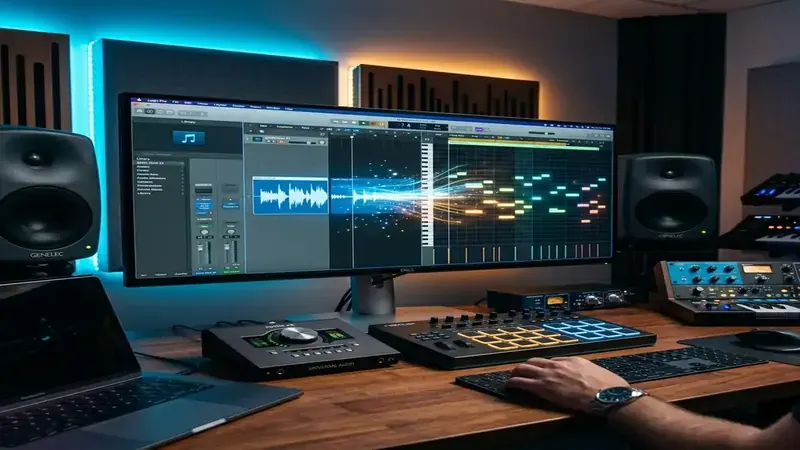
To convert audio file to midi logic, import your audio track into Logic Pro, enable Flex Pitch on the track header, open the Audio Track Editor, and select Track > Create MIDI Track from Flex Pitch Data to generate a software instrument MIDI region automatically.
When laying down vocal hooks or guitar ideas on a phone voice memo app, transcribing every single note by hand into a DAW Piano Roll wastes hours of studio time. Modern digital audio workstations eliminate that friction by analyzing physical sound wave frequencies and converting them directly into editable MIDI data triggers.
Nine times out of ten, converting audio to MIDI in Logic Pro takes fewer than four clicks. Whether you want to turn a hummed melody into a synth baseline, extract chord notes from clean acoustic stems, or trigger drum samples over live kit recordings, Apple’s built-in Flex Pitch and Drum Replacement engines handle pitch detection automatically.
If you process audio assets for session mixes, check out our WAV to MP3 guide for uncompressed format comparisons, explore our audio file converter guide for DAW prep, or read our YouTube to M4A guide for high-bitrate audio workflows.
Table of Contents
- What Is Audio-to-MIDI Conversion?
- Can Logic Pro Convert Audio to MIDI?
- Supported Audio Types
- How to Convert Audio File to MIDI in Logic Pro (Step-by-Step)
- How to Convert Audio to MIDI in Logic Pro X
- How to Turn Audio into MIDI in Logic
- How to Convert MIDI Files Back to Audio in Logic
- How to Humanize MIDI in Logic Pro
- Best MIDI Keyboards for Logic Pro
- Best MIDI Controllers for Logic Pro
- Fix “Logic Pro MIDI Core Services Not Available”
- Where to Download MIDI Files for Logic Pro
- Common Audio-to-MIDI Problems
- Audio-to-MIDI Tips for Better Accuracy
- Conclusion
- Frequently Asked Questions (FAQ)
What Is Audio-to-MIDI Conversion?
Audio-to-MIDI conversion takes a recorded sound file—such as a .wav, .mp3, or .m4a file—and analyzes its frequency, pitch, and timing data. Instead of keeping the actual recorded sound wave, the pitch detection engine translates those audio frequencies into digital control instructions known as MIDI (Musical Instrument Digital Interface).
When you run audio to midi logic, Logic Pro identifies note start times, pitch values, velocity levels, and note lengths. It converts those physical sound waves into digital triggers inside a MIDI Region. Once converted, you can reassign that pitch data to play any Software Instrument, Synthesizer, Sampler, or Drum Machine Designer inside your session.
Audio-to-MIDI analysis estimates note events from a recording. It is not a lossless file-format conversion, and complex recordings may require manual correction.
Can Logic Pro Convert Audio to MIDI?
Yes. Logic Pro includes native pitch analysis and timing tools built directly into its core engine by Apple. You do not need third-party plugins, costly pitch correction software, or external standalone utilities to perform logic pro audio to midi transformations.
Logic Pro offers two primary native workflows for converting audio to MIDI:
- Flex Pitch Engine: Analyzes monophonic pitch information (single notes, vocal melodies, basslines, solo brass, or lead guitar riffs) and extracts exact note events into a software instrument track.
- Drum Replacement and Doubling: Uses transient detection on percussive audio tracks to replace or double snare, kick, or tom hits with digital drum samples.
Supported Audio Types
Not every audio recording behaves identically when processed through pitch extraction algorithms. Understanding the distinction between monophonic and polyphonic sound is the secret to getting clean results when you turn audio to midi logic.
Vocals
Monophonic vocal tracks are the easiest audio type to convert. Vocal melodies have distinct single pitches, making them ideal for Flex Pitch pitch detection. Clean studio vocal takes yield near 100% accuracy.
Guitar
Lead guitar solos, single-note acoustic riffs, and clean electric basslines work remarkably well. However, strummed acoustic chords contain overlapping frequencies that can confuse standard Flex Pitch tools.
Bass
Electric, upright, and synthesized basslines convert cleanly because bass notes have long, distinct fundamental frequencies.
Piano
Single-note piano melodies convert with high precision. Polyphonic piano chords require manual editing in the Piano Roll or specialized polyphonic pitch detection.
Drums
Percussive sounds lack fixed musical pitch, but Logic Pro uses transient detection to convert kick, snare, and tom audio regions into MIDI note triggers for Drum Machine Designer.
Monophonic vs Polyphonic
- Monophonic: One single note plays at any given moment (vocals, whistle, saxophone lead, bassline). Logic Pro converts monophonic audio to MIDI with extreme accuracy.
- Polyphonic: Multiple notes play simultaneously (strummed guitar, piano chords, multi-instrument song mix). Standard Flex Pitch focuses on monophonic lines, so polyphonic chords require post-conversion pitch cleanup.
How to Convert Audio File to MIDI in Logic Pro (Step-by-Step)
Follow these exact steps to execute a how to convert audio file to midi logic workflow on any monophonic audio track:
- Import your audio file: Drag your audio file (
.wav,.mp3, or.m4a) into the Logic Pro workspace to create an Audio Track. - Enable Flex Mode: Click the Flex Icon (looks like an hourglass/waveform) in the Logic Pro main window toolbar, or press
Cmd + F. - Select Flex Pitch: On the audio track header, turn on Flex and choose Flex Pitch from the drop-down mode menu. Logic Pro will analyze the track waveform and detect pitch nodes.
- Open Audio Track Editor: Double-click the audio region or press
Eto open the editor pane at the bottom of your screen. Select the Track tab. - Convert to MIDI: In the Audio Track Editor menu bar, click Track > Create MIDI Track from Flex Pitch Data.
- Assign Software Instrument: Logic Pro automatically creates a new Software Instrument track below your audio track containing a new MIDI Region filled with converted note events. Click the Instrument slot in the Inspector panel to assign your preferred Synthesizer or Sampler.
- Edit Notes in Piano Roll: Double-click the new MIDI region to open the Piano Roll, adjust misaligned notes, fix quantization, and fine-tune velocity values.
If you need to convert raw audio files between different formats before importing into Logic Pro, read our comprehensive audio file converter guide or learn how to convert compressed files in our convert AAC to MP3 tutorial.
How to Convert Audio to MIDI in Logic Pro X
If you are working on older macOS machines using Logic Pro X (versions 10.0 through 10.7), the core process for how to convert audio file to midi in logic x remains largely identical, with minor interface differences:
- In legacy Logic Pro X, Flex Pitch is activated by clicking the Flex button on the Track Header and selecting Flex Pitch from the track algorithm drop-down menu.
- Open the Track Editor (
E), select the Track menu bar (not the Region menu bar), and choose Create MIDI Track from Flex Pitch Data. - Smart Tempo integration in newer Logic Pro versions (10.4+) automatically aligns imported audio tempo maps before pitch analysis, whereas older Logic Pro X sessions might require manual region beat-matching before Flex Pitch conversion.
Whether you search for how to convert audio files to midi logic pro x or modern Logic Pro 11+, the Flex Pitch underlying engine is Apple’s gold standard. For official documentation on legacy and modern workspace controls, consult the Apple Logic Pro User Guide (external reference).
How to Turn Audio into MIDI in Logic
Different instruments require slight tweaks when learning how to turn audio into midi logic. Here is how to handle specific sound sources:
Vocals & Voice Memos
Whistled ideas, hummed hooks, or recorded lead vocal stems convert effortlessly. Make sure to strip out background noise and room echo before running Flex Pitch for maximum pitch clarity.
Guitar & Bass Riffs
Monophonic guitar solos and basslines convert cleanly. Ensure your guitar track was recorded with a direct input (DI) box or clean amp setting so distortion harmonics do not trip up the pitch analyzer.
Live Drums & Percussion
To convert live drum recordings into MIDI drum triggers:
- Select your drum audio region (e.g. snare or kick drum track).
- Go to the main menu bar and choose Track > Drum Replacement/Doubling.
- Select the drum type (Kick, Snare, or Tom) and adjust the threshold slider until the white trigger markers match your drum hits.
- Click OK. Logic Pro creates a software instrument track loaded with Drum Machine Designer or Sampler and inserts corresponding MIDI trigger notes.
If your audio source comes from extracted YouTube video clips, check out our guide on converting YouTube videos to audio to prepare clean stems.
How to Convert MIDI Files Back to Audio in Logic
Once you have arranged, edited, and sound-designed your MIDI regions, you will often need to know how to convert midi files to audio in logic for mixdown or stem mastering.
Here are the three best ways to render MIDI to audio in Logic Pro:
- Bounce in Place: Select your MIDI region or track, press
Ctrl + B(or right-click and choose Bounce in Place). Choose your bit depth, tail processing settings, and click OK. Logic Pro immediately renders a new audio track right below your MIDI track. - Freeze Track: Click the Freeze Icon (snowflake icon) on the track header. Press Spacebar to play through the project once. Logic Pro temporarily renders the software instrument to high-quality audio, freeing up CPU processing power.
- Export Track as Audio File: Select the MIDI track, go to File > Export > 1 Track as Audio File, choose your destination folder, and select
.wavor.aiffformat.
How to Humanize MIDI in Logic Pro
Raw converted MIDI notes often sound robotically stiff because pitch extraction algorithms align note starts to exact transient locations. To make your converted performances feel organic, use logic pro humanize midi features:
- Functions Menu Humanize: Double-click your MIDI region to open the Piano Roll. Select all notes (
Cmd + A), click Functions > Transform > Humanize. Logic Pro randomly nudges note position, length, and velocity by customizable small values. - Swing and Quantization: Select your MIDI notes and apply smart quantization values (such as
1/16 Note Swing Q-50%) in the Piano Roll inspector to introduce natural groove. - Velocity Dynamics: Vary velocity levels manually or use the Velocity Tool (
V) so note volumes reflect natural human playing intensity.
Best MIDI Keyboards for Logic Pro
Having a reliable hardware keyboard makes editing converted MIDI notes and playing software instruments far easier. Here are the top hardware options for Logic Pro users:
- Novation Launchkey Series: Offers deep native integration with Logic Pro transport controls, track navigation, smart chord modes, and dedicated mixer faders.
- Arturia KeyLab Essential / MkII: Features semi-weighted keybeds, tactile rotary knobs, velocity-sensitive pads, and seamless integration with Analog Lab synth collections.
- Akai MPK Mini Mk3: Compact 25-key travel controller featuring ultra-responsive MPC pads, assignable knobs, and an intuitive OLED display.
- Native Instruments Komplete Kontrol S-Series: High-end Fatar keybeds with smart light guides, color screens, and automatic parameter mapping across Virtual Instruments.
- M-Audio Oxygen Pro: Excellent budget-friendly controller offering velocity-sensitive keys, auto-mapping for Logic Pro, and integrated arpeggiators.
Best MIDI Controllers for Logic Pro
If you prefer pad-based production, fader banks, or dedicated control surfaces without full keybeds, these represent the top logic x midi controller choices:
- Ableton Push 3 (Standalone/Controller Mode): Offers MPE (MIDI Polyphonic Expression) pad grids compatible with Logic’s MPE Sampler and Alchemy synths.
- PreSonus FaderPort: Single-fader or multi-fader motorized control surface for precise mix automation, transport navigation, and plugin parameter adjustment in Logic Pro.
- Korg nanoKONTROL2: Lightweight, ultra-portable USB controller featuring 8 fader strips, pan knobs, and transport keys for mobile laptop rigs.
Fix “Logic Pro MIDI Core Services Not Available”
Nothing ruins a session faster than getting the dreaded “Logic Pro MIDI Core Services Not Available” error dialog when launching your DAW. This system error means macOS CoreMIDI service has crashed or suffered a driver conflict.
Here is how to resolve it step-by-step:
- Reset MIDI Drivers in Logic: Go to Logic Pro > Settings > Audio > MIDI tab, and click Reset MIDI Drivers.
- Restart CoreMIDI Service via Terminal: Open macOS Terminal (
Cmd + Space> Terminal) and run:
macOS will automatically restart the CoreMIDI background daemon.sudo killall -9 com.apple.audio.MIDIserver - Check Audio MIDI Setup: Open macOS Audio MIDI Setup app (
Applications > Utilities > Audio MIDI Setup). Click Window > Show MIDI Studio. Ensure your connected hardware controllers appear active (not dimmed grey). - Delete Corrupted MIDI Preferences: Navigate to
~/Library/Preferences/in Finder and movecom.apple.audio.AudioMIDISetup.plistto Trash, then restart your Mac. - Update macOS and Logic Pro: Ensure both macOS system software and Logic Pro are running their latest compatible updates via Mac App Store.
Where to Download MIDI Files for Logic Pro
If you want to practice arranging or analyze chord progressions, importing pre-made MIDI files into Logic Pro is a great learning exercise:
- Free Online MIDI Libraries: Websites like BitMidi, Freesound.org, and MidiWorld offer vast archives of public-domain backing tracks, classical piano pieces, and pop basslines.
- Importing MIDI into Logic: Drag any
.midor.midifile directly into your Logic project timeline. Logic Pro will ask if you want to import tempo information; select Yes to sync project BPM automatically. - Organizing MIDI Files: Create a dedicated
MIDI Libraryfolder in your Mac’s Documents folder. Use Logic Pro’s built-in All Files Browser (Fkey) to audition and drag MIDI files straight into active sessions.
Common Audio-to-MIDI Problems
When learning how to turn audio into midi logic, you might encounter these common issues:
| Problem | Root Cause | Solution |
|---|---|---|
| Wrong / Stray Notes | Background room noise or vocal breath sounds analyzed as pitches | Raise Flex Pitch threshold or delete ghost notes manually in Piano Roll. |
| Latency / Delay | Buffer size set too high during playback | Set Buffer Size to 128 samples in Logic Pro Audio Settings. |
| Polyphonic Glitches | Strummed chords uploaded into monophonic Flex Pitch | Split chords into single notes or use polyphonic pitch tools. |
| Missing Transient Hits | Soft drum hits below transient threshold | Adjust Drum Replacement threshold slider in Track menu. |
| Out-of-Tune MIDI Notes | Pitch drift in vocal recording | Apply 100% Pitch Quantize in Flex Pitch editor before converting. |
Audio-to-MIDI Tips for Better Accuracy
To get pristine MIDI notes every single time you execute audio to midi logic conversions, follow these trade tips:
- Clean Up Audio First: Strip out low-frequency rumble using a high-pass filter (EQ) before turning on Flex Pitch.
- Use Monophonic Sources: Monophonic solo vocals, clean basslines, and synth leads yield 95%+ conversion accuracy compared to dense mixes.
- Apply Noise Reduction: Use a noise gate or spectral denoiser to mute silent gaps between notes so background hiss is not converted into stray MIDI events.
- Correct Pitch in Flex First: Before clicking Create MIDI Track from Flex Pitch Data, select all vocal blobs in the Audio Track Editor and drag Fine Pitch and Pitch Quantize sliders to 100%.
- Utilize Smart Tempo: Let Logic Pro calculate exact project tempo maps using Smart Tempo prior to pitch extraction to ensure perfectly quantized MIDI grids.
Conclusion
Converting audio files to MIDI in Logic Pro is one of the most powerful workflows built into Apple’s workstation. Whether you are humming a melody into your phone, extracting basslines from raw studio stems, or triggering drum samples over acoustic takes, Flex Pitch and Drum Replacement handle the conversion in seconds.
Next time your apprentice—or your own creative brain—struggles to manually transcribe a vocal hook into the Piano Roll, just enable Flex Pitch and let Logic Pro do the work. If you need to convert audio formats or learn more about high-resolution sound files, check out our WAV vs MP3 comparison or explore our M4A audio converter guide.
Frequently Asked Questions (FAQ)
Can Logic Pro convert audio to MIDI?
Yes. Logic Pro features built-in audio-to-MIDI conversion using Flex Pitch for monophonic audio like vocals and bass, and Track Flex Time for drum track audio conversion.
Does Logic Pro X support audio to MIDI?
Yes. Logic Pro X supports audio to MIDI conversion via Flex Pitch note processing and Track > Create MIDI Track from Flex Pitch Data.
Why isn’t my MIDI conversion accurate in Logic Pro?
Polyphonic audio with complex chords, background noise, room reverb, or inaccurate tempo detection can confuse Flex Pitch algorithms and cause wrong notes or missing events.
Can vocal recordings be converted to MIDI notes in Logic?
Yes. Importing a clean monophonic vocal line into Logic Pro, enabling Flex Pitch, and selecting Create MIDI Track from Flex Pitch Data extracts accurate pitch data into a MIDI region.
Can audio drum tracks be converted to MIDI triggers?
Yes. Logic Pro allows you to select a drum audio region, open Track > Drum Replacement/Doubling, and automatically create a MIDI track loaded with Sampler or Drum Machine Designer.
How do I export MIDI files from Logic Pro?
Select the MIDI region in your project, go to File > Export > Selection as MIDI File, choose your destination folder, and click Save.