WebM to MP3: Extract Audio from WebM in Seconds
By ytmp3converter • October 7, 2026
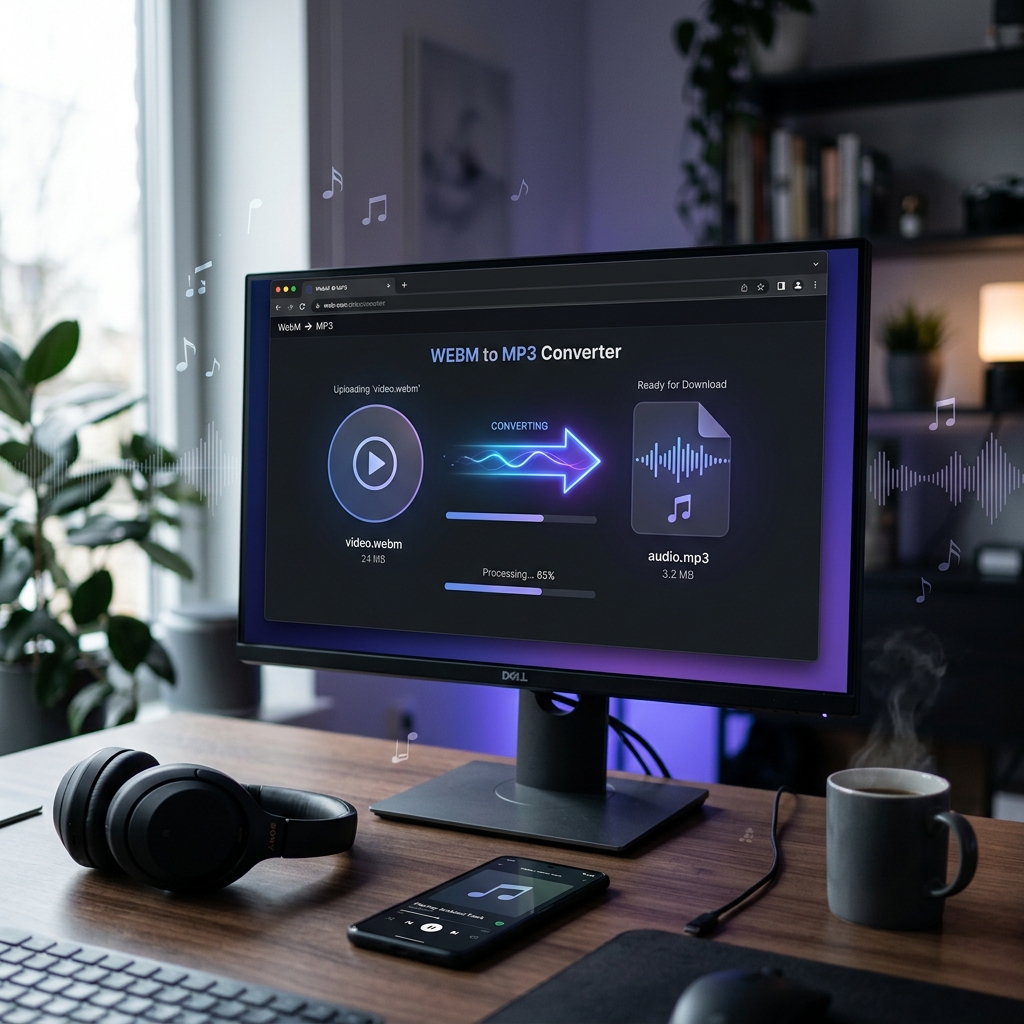
Quick answer: To convert WebM to MP3, use an online converter, FFmpeg (
ffmpeg -i input.webm -q:a 2 output.mp3), or VLC. The process takes seconds for most files and extracts the audio track from the WebM container into a universally compatible MP3 file.
WebM can contain audio and video, or audio alone. MP3 conversion is useful when the destination player does not support the source, but another lossy encoding step can reduce quality.
Here’s the short version: you have a WebM file, you want the audio as an MP3, and you don’t want to install some 200 MB software suite that comes bundled with three toolbars and a prayer. Fair enough. This guide covers every way to convert WebM to MP3 — online tools, FFmpeg, VLC, and a few things competitors won’t tell you about quality loss.
Table of Contents
- What Is WebM and Why Does It Exist
- WebM to MP3 Using a Free Online Converter
- Convert WebM to MP3 with FFmpeg
- Convert WebM to MP3 Using VLC
- Quality Settings That Actually Matter
- WebM vs MP3: A Quick Format Comparison
- Common Problems and How to Fix Them
- Conclusion
- Frequently Asked Questions (FAQ)
What Is WebM and Why Does It Exist
WebM is Google’s open-source media container format, built for the web. It uses VP8 or VP9 for video and Vorbis or Opus for audio. YouTube uses it extensively for streaming, which is why half the “downloaded videos” sitting on your hard drive are probably WebM files you didn’t ask for.
WebM playback varies by player, codec, and device. Check the destination player before choosing an output format.
That’s why you want MP3. It’s the audio format equivalent of a universal adapter. Every device made in the last 25 years plays MP3 without complaint.
If you’re curious about how different audio formats compare, our MP3 vs WAV breakdown covers the quality and file size trade-offs worth knowing.
WebM to MP3 Using a Free Online Converter
The fastest method. No software to install. Works on any device with a browser.
Step-by-step:
- Open your browser and navigate to a WebM to MP3 converter (CloudConvert, FreeConvert, or Convertio all work).
- Click “Choose File” or drag your .webm file onto the upload area.
- Set the output format to MP3.
- If available, set the bitrate to 192 kbps or 320 kbps for better quality.
- Click “Convert” and wait a few seconds.
- Download the finished MP3 file.
When to use this method: Your file is under 100 MB, you don’t need to do batch conversions, and you want it done in under a minute.
When to skip it: The file contains sensitive audio, or it’s over 500 MB. Most free online converters upload your file to their servers for processing. If privacy matters, use a desktop tool instead.
For a deeper look at browser-based conversion safety, our guide on whether CloudConvert is safe covers what to watch for.
Convert WebM to MP3 with FFmpeg
FFmpeg is a command-line media tool available for Windows, macOS, and Linux.
Install FFmpeg:
- Windows: Download from ffmpeg.org or install via
winget install ffmpeg. - macOS:
brew install ffmpeg - Linux:
sudo apt install ffmpeg
Basic conversion command:
ffmpeg -i input.webm -q:a 2 output.mp3The -q:a 2 flag sets variable bitrate quality (0 is best, 9 is worst). A value of 2 gives you roughly 190–200 kbps, which is the sweet spot for most people.
For maximum quality (320 kbps CBR):
ffmpeg -i input.webm -b:a 320k output.mp3Batch convert every WebM in a folder (Windows):
for %f in (*.webm) do ffmpeg -i "%f" -q:a 2 "%~nf.mp3"Batch convert (macOS/Linux):
for f in *.webm; do ffmpeg -i "$f" -q:a 2 "${f%.webm}.mp3"; doneFFmpeg doesn’t re-encode the audio into some intermediate format first. It reads the Vorbis or Opus stream from the WebM container and transcodes directly to MP3 in a single pass. Fast and clean.
Convert WebM to MP3 Using VLC
VLC is the media player that plays everything. It also converts everything, which most people don’t know.
Step-by-step:
- Open VLC and go to Media → Convert/Save (or press Ctrl+R).
- Click Add and select your .webm file.
- Click Convert/Save at the bottom.
- Under Profile, select Audio - MP3.
- Click the wrench icon to set the bitrate (192 kbps or 320 kbps recommended).
- Set the Destination file path, making sure the filename ends in
.mp3. - Click Start.
VLC will re-encode the audio. It takes a bit longer than FFmpeg for large files, but there’s no command line involved. If you can click a button, you can use VLC.
One thing to know: VLC sometimes produces a file that’s slightly shorter than the source. Trimming a fraction of a second at the end. For music, probably not a problem. For a 90-minute podcast, check the end of the file to make sure nothing got clipped.
If you’ve got YouTube content you want as audio, our guide on converting YouTube videos to audio walks through that workflow.
Quality Settings That Actually Matter
Not all MP3 files are created equal. The bitrate determines how much audio data is kept per second of playback. Higher bitrate means better quality and bigger files.
| Bitrate | Quality | File Size (per minute) | Best For |
|---|---|---|---|
| 128 kbps | Acceptable | ~960 KB | Voice memos, podcasts |
| 192 kbps | Good | ~1.4 MB | General music listening |
| 256 kbps | Very good | ~1.9 MB | Hi-fi portable playback |
| 320 kbps | Near-transparent | ~2.4 MB | Archival quality, DJs |
My rule of thumb: if you’re converting a WebM recording of a podcast or lecture, 128 kbps is fine. The human voice doesn’t need much. If it’s music — especially anything with cymbals, acoustic guitar, or dynamic range — go 256 kbps or 320 kbps. The difference between 128 kbps and 320 kbps on a decent pair of headphones is the difference between “fine” and “actually enjoyable.” (Yes, I know that makes me sound like an audio snob. I’m a bloke who listens to Dire Straits on repeat. The bar is not that high.)
For the full rundown on audio quality decisions, our best audio quality settings guide covers bitrate, sample rate, and when to use what.
WebM vs MP3: A Quick Format Comparison
These two formats solve different problems. WebM is a container that holds video and audio. MP3 is an audio-only codec. Comparing them is a bit like comparing a toolbox to a single screwdriver — different tools for different jobs.
| Feature | WebM | MP3 |
|---|---|---|
| Type | Media container (video + audio) | Audio codec |
| Video | VP8/VP9 | None |
| Audio codec | Vorbis or Opus | MPEG-1 Audio Layer III |
| File size | Larger (contains video) | Smaller (audio only) |
| Browser support | Chrome, Firefox, Edge | Universal |
| Device support | Limited outside browsers | Everything, everywhere |
| Royalty-free | Yes | Patents expired (free since 2017) |
The reason you’re converting is almost always compatibility. WebM works on the web. MP3 works everywhere else.
If you’ve been working with other container formats like MKV, our guide on converting MKV to MP4 covers the same container-swap logic with video included.
Common Problems and How to Fix Them
“The output file has no audio”
Your source WebM file might be video-only. Some screen recordings and animated images exported as WebM contain no audio stream at all. Check with FFmpeg:
ffmpeg -i yourfile.webmLook for an “Audio” stream in the output. If there isn’t one, there’s nothing to extract. No audio in means no audio out. (I don’t make the rules. I just explain them with unnecessary analogies.)
“The audio sounds robotic or garbled”
You might be using too low a bitrate. Bump it up to at least 192 kbps. If that doesn’t help, the source audio in the WebM file was already heavily compressed.
“FFmpeg says ‘codec not supported’”
Your FFmpeg installation might be missing the libmp3lame encoder. Reinstall FFmpeg with full codec support:
sudo apt install ffmpeg libavcodec-extraOn Windows, make sure you downloaded the “full” build from ffmpeg.org, not the “essentials” build.
“My file is too large for online converters”
Most free online converters cap file uploads at 100–500 MB. Use FFmpeg or VLC locally instead. No upload limits, no waiting for server processing, no wondering where your file went.
If you’re dealing with other audio format conversions, our AAC to MP3 guide covers a similar transcoding workflow.
Conclusion
Converting WebM to MP3 is a 30-second job once you know which tool to use. Online converters handle quick one-off files. FFmpeg handles everything else, including batch jobs, with a single command. VLC is the middle ground for people who prefer buttons over terminals.
Choose a bitrate appropriate to the source and check that the input actually contains an audio stream.
Pick your tool, set your bitrate, and move on with your day.
Frequently Asked Questions (FAQ)
What is a WebM file?
WebM is an open-source, royalty-free media container format developed by Google for web use. It typically holds VP8 or VP9 video with Vorbis or Opus audio. Browsers love it, but your phone’s music player probably doesn’t.
Does converting WebM to MP3 lose quality?
Some loss is unavoidable because you’re transcoding from one lossy codec (Vorbis or Opus) to another (MP3). The loss is minimal at 256 kbps or 320 kbps. For most listeners the difference is inaudible.
Can I convert WebM to MP3 on my phone?
Yes. Browser-based converters work on any phone with a modern browser. Upload the WebM file, choose MP3, and download the result. No app install required.
What bitrate should I use for WebM to MP3?
Use 192 kbps for a good balance of quality and file size. Use 320 kbps if you want near-transparent quality. Anything below 128 kbps sounds noticeably worse on decent headphones.
Is FFmpeg free to use for WebM to MP3 conversion?
Yes. FFmpeg is free, open-source software licensed under LGPL or GPL. It runs on Windows, macOS, and Linux. It handles WebM to MP3 conversion in a single command line.
Why does my WebM file have no audio when I try to convert it?
Some WebM files are video-only with no audio stream embedded. Screen recordings and animated images exported as WebM often have no audio track. Check the file info in VLC or FFmpeg before converting.