YouTube to FLAC: How to Convert YouTube Audio to Lossless
By ytmp3converter • October 2, 2026
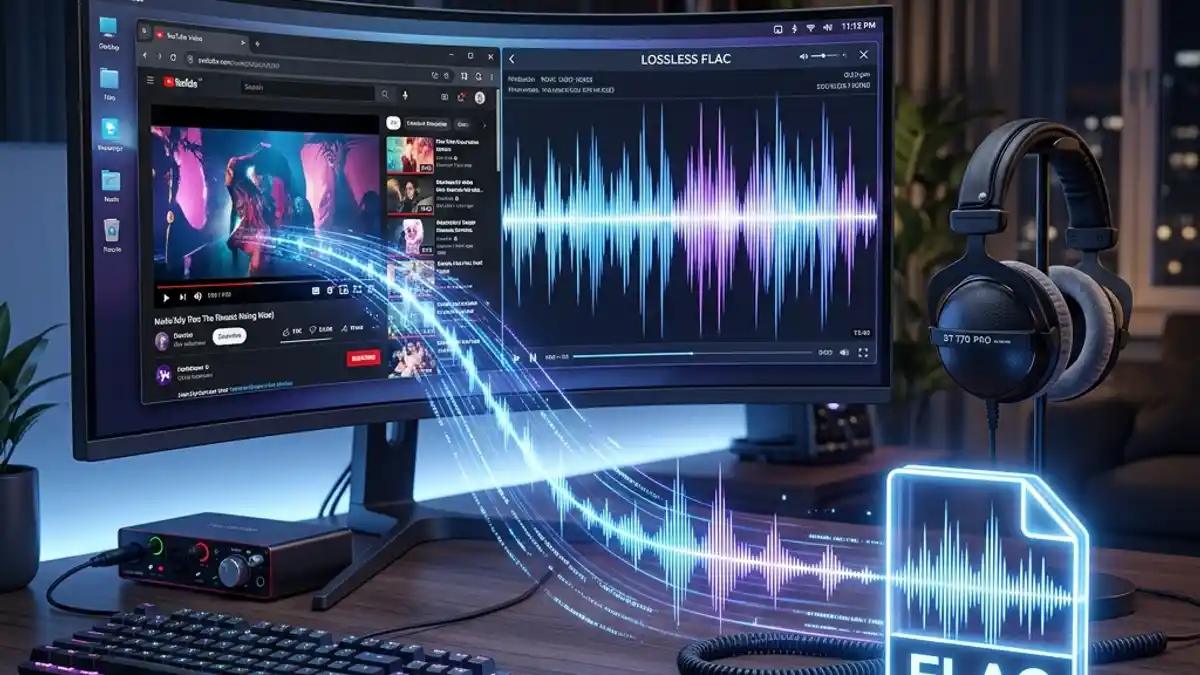
Quick Answer: YouTube to FLAC conversion saves the decoded audio stream in a lossless container, preventing double compression. However, it does not improve quality beyond what YouTube originally provides, since YouTube already uses lossy encoding (Opus or AAC) on every upload.
Saving decoded audio as FLAC avoids a further lossy encoding step. It cannot restore audio detail already discarded by the source.
If you have been searching for how to convert YouTube to FLAC and wondering whether it actually gives you lossless audio, this guide covers the honest truth, the practical methods, and the one thing most converter sites will never tell you.
Table of Contents
- What Is YouTube to FLAC Conversion
- The Honest Truth About YouTube Audio Quality
- Why Convert to FLAC Instead of MP3
- How to Convert YouTube to FLAC Online
- YouTube to FLAC Using Desktop Tools
- FLAC vs WAV vs MP3 for YouTube Downloads
- When YouTube to FLAC Actually Makes Sense
- Conclusion
- Frequently Asked Questions (FAQ)
What Is YouTube to FLAC Conversion
YouTube to FLAC conversion is the process of extracting audio from a YouTube video and saving it in the FLAC (Free Lossless Audio Codec) format. FLAC is an open-source codec that compresses audio without discarding any data — think of it as a ZIP file specifically designed for sound.
When you convert a YouTube video to FLAC, the converter tool downloads the audio stream that YouTube serves (typically Opus or AAC), decodes it, and wraps the result in a .flac container.
The key distinction here — and this is important — is that FLAC preserves whatever it receives. It does not add quality. It does not subtract quality. It just holds the audio exactly as delivered.
For a deeper look at what FLAC actually is and how lossless compression works, check out our guide on what does FLAC stand for.
The Honest Truth About YouTube Audio Quality
Here is the part most YouTube to FLAC converter websites conveniently skip: YouTube does not store audio in lossless format. Every video uploaded to YouTube gets re-encoded by Google’s servers. The original studio master, the pristine WAV file, the lovingly recorded 24-bit audio — all of it gets compressed into a lossy format before it reaches your ears.
YouTube typically serves audio in one of two codecs:
- Opus (inside a WebM container): Usually 128 to 160 kbps
- AAC (inside an MP4 container): Usually 128 to 256 kbps
Compare that to uncompressed CD audio, which runs at 1,411 kbps. YouTube is delivering roughly 10% to 18% of that data. The rest is gone permanently.
+-----------------------------------------------------------------------+
| Original CD Audio (WAV)      -->  1,411 kbps  -->  100% of data       |
+-----------------------------------------------------------------------+
| YouTube Opus Stream          -->  128-160 kbps -->  ~10% of data      |
+-----------------------------------------------------------------------+
| YouTube AAC Stream           -->  128-256 kbps -->  ~12-18% of data   |
+-----------------------------------------------------------------------+
| FLAC from YouTube            -->  Same as above, lossless container   |
+-----------------------------------------------------------------------+
So when you convert YouTube to FLAC, you are putting a lossy signal inside a lossless container. It is like putting tap water in a crystal decanter. (Yes, I know how that sounds. The water doesn’t get fancier. But at least you’re not making it worse.)
For more context on the differences between compressed and uncompressed audio, our MP3 vs WAV comparison breaks it down with concrete numbers.
Why Convert to FLAC Instead of MP3
If YouTube audio is already lossy, why bother with FLAC at all? Fair question. Here is the genuinely useful answer.
Avoiding Double Compression
When you download YouTube audio as MP3, the process works like this:
- YouTube delivers a lossy Opus or AAC stream
- The converter decodes that stream into raw PCM audio
- The converter re-encodes the raw audio into MP3 — another lossy format
That second round of lossy compression removes even more data. Each generation of lossy encoding chews away at the signal. It is like photocopying a photocopy — the text is still readable, but it gets noticeably rougher each time.
FLAC skips step 3 entirely. Instead of re-encoding into another lossy format, it encodes the decoded samples losslessly, provided the process does not change sample rate, bit depth, or channels. This preserves the decoded audio rather than recovering the original studio recording.
Archival Stability
FLAC files do not degrade with repeated copying or transfer. If you plan to edit, remix, or process the audio later, starting from FLAC gives you a cleaner foundation than starting from an MP3 that has already been compressed twice.
Library Consistency
If your local music library is already organized in FLAC — say you have ripped your CD collection into lossless files — adding YouTube downloads as FLAC keeps your library format consistent. One format, one set of metadata rules, one player configuration.
To learn more about extracting audio from YouTube videos in various formats, our guide on how to convert YouTube videos to audio covers the full process.
How to Convert YouTube to FLAC Online
The fastest method for a one-off YouTube to FLAC conversion is an online converter. No software installation, no command-line work, just a browser and a URL.
Here is how to do it using a browser-based audio converter:
- Copy the YouTube video URL from your browser address bar
- Open an online audio converter tool
- Paste the YouTube URL into the input field
- Select FLAC as your output format
- Click Convert and download the finished
.flacfile
What to Watch Out For
Nine times out of ten, the frustration with online converters comes from three things:
- Misleading ads and fake download buttons. The real button is usually the smallest one on the page. If a button says “Download Now” in bright green and it is the size of a billboard, it is probably an ad.
- File size limits. Some online tools cap conversions at 10 or 20 minutes of audio.
- Quality claims. Any site promising “lossless 320 kbps” or “studio quality from YouTube” is either confused or hoping you are.
A good converter does one thing: takes the YouTube audio stream, decodes it cleanly, and wraps it in FLAC without any additional re-encoding tricks.
For those who also want to save entire YouTube videos for offline viewing, our guide on how to save YouTube videos offline covers video download methods alongside audio extraction.
YouTube to FLAC Using Desktop Tools
For batch conversions or if you want maximum control over the output, desktop tools are the better option.
yt-dlp (Command Line, Free, Open Source)
yt-dlp is the gold standard for YouTube audio extraction. It is free, open-source, ad-free, and gives you direct access to the best available audio stream.
To extract audio as FLAC, run this command:
yt-dlp -x --audio-format flac "https://www.youtube.com/watch?v=YOUR_VIDEO_ID"For an entire playlist:
yt-dlp -x --audio-format flac "https://www.youtube.com/playlist?list=YOUR_PLAYLIST_ID"yt-dlp requires FFmpeg installed on your system to handle the format conversion. Once both are installed, it is genuinely the cleanest extraction method available. No ads, no pop-ups, no mystery executable files downloading themselves in the background.
4K Video Downloader
If a command line makes you feel like you have accidentally hacked into a government database — fair enough — 4K Video Downloader offers a graphical interface. Paste the URL, select “Extract Audio,” choose FLAC as your format, and click download.
The free version handles individual videos. Playlist and batch features typically require the paid version.
Audacity (Recording Method)
Audacity can record your system’s audio output while a YouTube video plays, then export the recording as FLAC. This is slower and requires real-time playback, but it works without any YouTube-specific download tools.
FLAC vs WAV vs MP3 for YouTube Downloads
When choosing a format for your YouTube audio download, here is how the three most common options compare:
| Feature | FLAC | WAV | MP3 |
|---|---|---|---|
| Compression Type | Lossless | None (uncompressed) | Lossy |
| File Size (per minute) | ~5 MB | ~10 MB | ~1 MB |
| Double Compression | No | No | Yes |
| Metadata Support | Full (Vorbis Comments) | Limited | Full (ID3 tags) |
| Device Compatibility | High (most modern devices) | Universal | Universal |
| Best For | Archival, editing | Professional editing | Everyday listening |
For YouTube downloads specifically, FLAC hits the sweet spot: half the file size of WAV, no double compression, and full metadata support for organizing your library.
MP3 is still the practical choice if you are loading files onto an older car stereo, a basic Bluetooth speaker, or any device manufactured before your morning coffee was technically possible. But if storage space is not a concern and you want the cleanest possible archive, FLAC is the format.
For more on how YouTube handles different audio containers, our breakdown of YouTube to M4A conversion covers the AAC side of the equation.
When YouTube to FLAC Actually Makes Sense
Let me be straight with you. Not every YouTube download needs to be FLAC. Here are the specific situations where it genuinely matters:
Good Reasons to Choose FLAC
- You plan to edit the audio. Trimming, normalizing, mixing — any audio processing step adds slight degradation on lossy files. Starting from FLAC avoids compounding that loss.
- Your music library runs on FLAC. Consistency matters for library software, metadata tagging, and playback workflows.
- You want to avoid generation loss. If the file will be converted to another format later, having a FLAC intermediate preserves the most data.
- You are archiving podcast episodes, lectures, or talks. Long-form spoken word benefits from clean archival copies.
When MP3 Is Perfectly Fine
- Casual listening through earbuds on a noisy train
- Loading a few tracks onto a USB stick for the car
- Sharing files where file size matters more than archival quality
Rule of thumb: if the file goes straight into your ears and never gets processed again, MP3 at 320 kbps is more than adequate. If the file might get edited, reformatted, or added to a curated library, FLAC is the smarter starting point.
Conclusion
Converting YouTube to FLAC does not give you studio-quality lossless audio. That ship sailed the moment YouTube re-encoded the original upload. But it does give you the cleanest possible preservation of what YouTube actually delivers — no double compression, no generational loss, and a stable archival format that will not degrade further.
For quick one-off conversions, an online tool gets the job done in seconds. For playlists and batch work, yt-dlp with FFmpeg is the cleanest, safest option available.
FLAC preserves the decoded samples supplied to it; converting a lossy source does not produce the original studio master.
The technical specifications for the FLAC format and its open-source development are maintained by the Xiph.Org Foundation.
Frequently Asked Questions (FAQ)
Does converting YouTube to FLAC improve audio quality?
No. YouTube compresses all uploads using lossy codecs like Opus or AAC. Converting to FLAC preserves the decoded stream without further degradation, but it cannot restore data that YouTube already discarded during upload.
Is YouTube to FLAC conversion legal?
Downloading copyrighted content without permission may violate YouTube’s Terms of Service and local copyright laws. Only convert content you own, public domain material, or videos where the creator has granted explicit download permission.
What format does YouTube actually use for audio?
YouTube encodes audio in Opus (inside a WebM container) or AAC (inside an MP4 container), typically at 128 to 256 kbps. The original uploaded file quality is irrelevant once YouTube re-encodes it.
Why choose FLAC over MP3 when downloading from YouTube?
FLAC avoids double compression. Downloading as MP3 re-encodes the already-lossy YouTube stream, introducing additional quality loss. FLAC wraps the decoded audio without adding another layer of lossy compression.
Can I convert a YouTube playlist to FLAC in bulk?
Yes. Desktop tools like yt-dlp support batch playlist extraction with a single command. Online converters typically handle one video at a time, making desktop tools the better option for large playlists.
Is a FLAC file from YouTube the same as a CD-quality FLAC?
No. A CD-quality FLAC contains true lossless data from an uncompressed 1,411 kbps source. A FLAC from YouTube contains the same 128-256 kbps lossy data, just stored in a lossless container. The file is bigger, but the audio is not better.